
Linking your free YouVersion account to your social networks makes it really simple to use the Bible App™ to share your thoughts about verses you’re reading. You always have control over what you share—no surprises in your Twitter or Facebook feed. Linking is an easy way to share your faith with your friends.
And setting it up is easy. It literally takes just about a minute. Here’s all you have to do:
- Go to the YouVersion.com website.
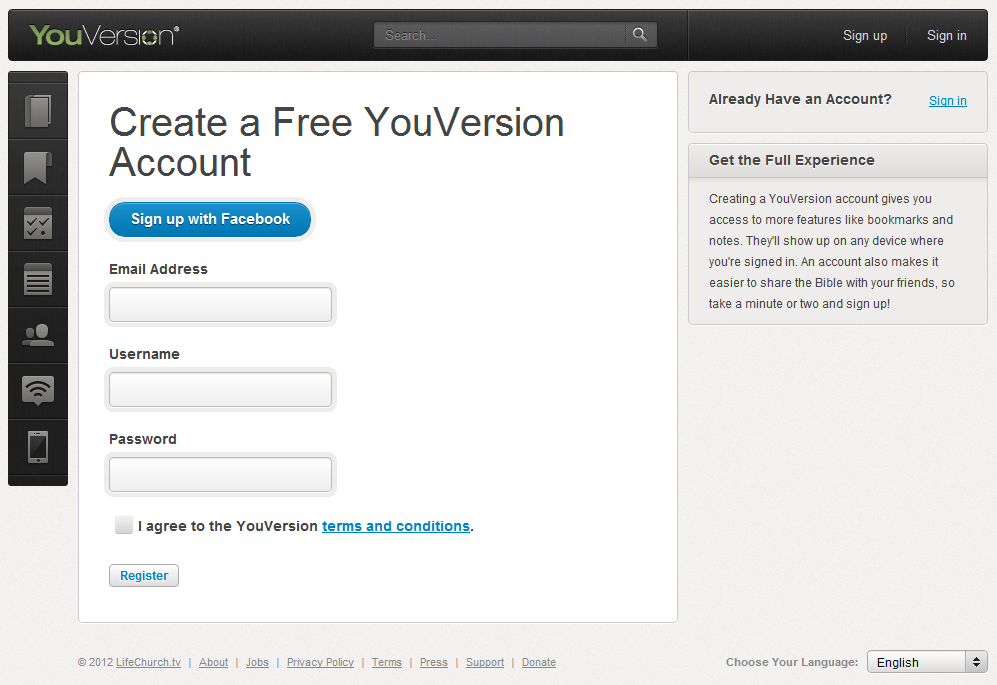
- Sign in to your free YouVersion account or, if you don’t have one already, sign up for one.
Note: If you have an existing Facebook account, you can sign up quickly with the “Sign up with Facebook” button.
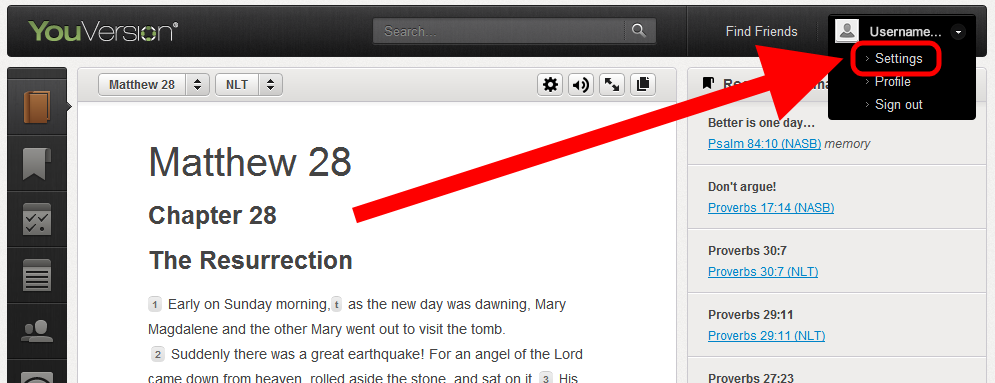
- Top Right: Click your Username, then Settings.
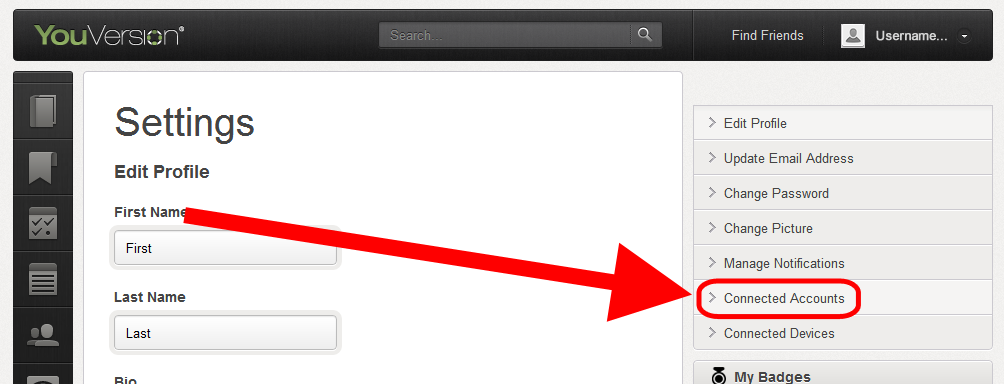
- Right: Select the Connected Accounts tab.
- Twitter:
- Select the Twitter tab.
- Click the “Connect to your Twitter account” link.
Note: If you’re not signed in, Twitter prompts you to sign in with your Twitter username and password. - Click [Allow]:

- YouVersion connects your account to Twitter. (You can remove this connection at any time.)
- Facebook:
- Select the Facebook tab.
- Click the “Connect to your Facebook account” link.
Note: If you’re not signed in, Facebook prompts you to sign in with your Facebook username and password. - Click [Allow].

- YouVersion connects your account to Facebook. (You can remove this connection at any time.)
That’s it! You’re done, and you’re ready to let people know what you’re up to with YouVersion, anytime you feel like it, anywhere you are.
Comments are closed.