
Announcing YouVersion.com and the Bible App—Completely in Korean

Announcing YouVersion.com and the Bible App—Completely in KoreanNow you can experience both YouVersion.com and the Bible App™ entirely in Korean! While we’ve offered Korean as a language option at YouVersion.com for months, today’s announcement covers more territory. When the YouVersion community formally launches an additional language, what that means is that every single interaction you can have with YouVersion’s tools and community is now available completely in that language. Korean is our sixth total language launch. (English was first, followed by Norwegian, Spanish, Chinese, and most recently, Russian.)

Specifically, here are all the ways that the YouVersion community (that’s you!) can now engage with God’s Word in Korean:

  • Great Korean Bibles. YouVersion’s partners have graciously provided our community with high quality, widely read Korean versions of the Bible, versions like 현대인의 성경, 개역한글, and 새번역. (To pick one, check 한국어 near the bottom of the Versions page or, in the Bible App, click to change your current version and scroll to see the available Korean versions.)
  • Entire User Interface. Thanks once again to our world-changing community of YouVersion volunteers, when you select Korean as the default language on your device—whether on your iPhone, iPad, iPod touch, Android, or BlackBerry—the Bible App displays all of your controls and menu options in that language.
  • Communication in Korean. Volunteers now make relevant YouVersion blog posts available in Korean. And when you initiate communication with YouVersion in Korean, your email and other responses will be in Korean as well.
  • Support in Korean. Now, you can even get help with the Bible App and YouVersion.com in Korean! When you have questions, YouVersion volunteers who speak Korean will be happy to assist you.

YouVersion’s vision has always been simple: To help people connect freely with God’s Word, as easily as possible, no matter where they live or what language they speak. If you have friends whose heart language is Korean, please share this great news about YouVersion.com and the Bible App with them. And be sure to come connect with us on Facebook and Twitter. We love hearing from you!

Keep checking back… To all our new Korean speakers: Welcome to our YouVersion family! We’re thrilled to have you join us. Over the next couple of weeks here on our blog, we’ll be providing more details about each individual piece of the complete Korean launch. We’re excited to share with you all that your community has to offer!
Share this post:

Updated Bible App for iPhone and iPod touch: All-New Highlights, Expanded Bookmarks

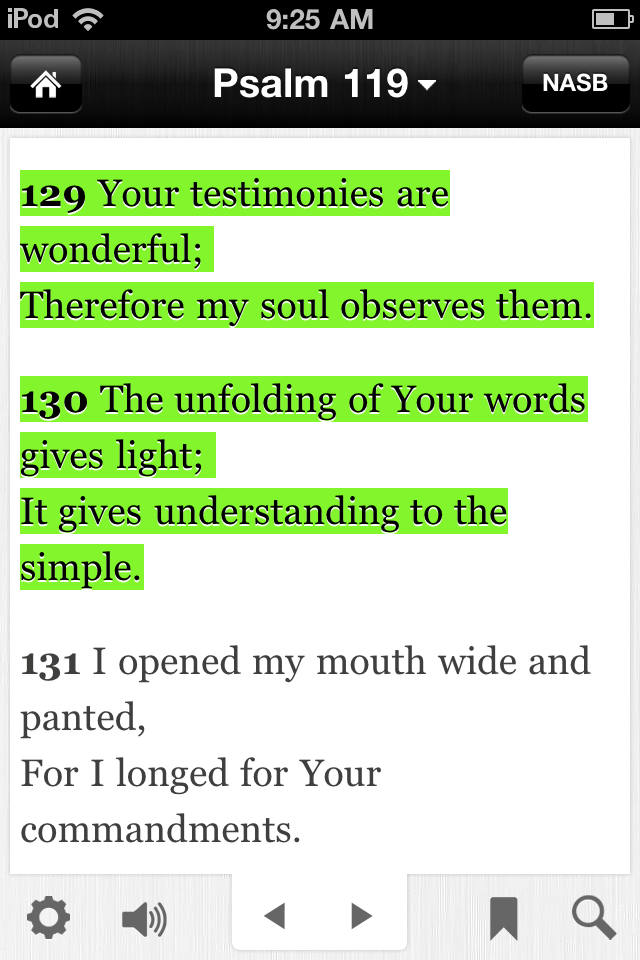
If you haven’t heard, the Bible App™ for iPhone and iPod touch recently got a comprehensive update. Version 3.3 is available immediately in the iTunes App Store. Over the last few days, we’ve been sharing tips with you on how you can take full advantage of many of the Bible App’s new features, including the updated Bible Reader and Sign in, Sign up and Support. Today we’ll introduce highlights for the first time, and we’ll show you your expanded bookmarking options.

All-New Highlights in the Bible App™ 

  • Highlights. Now, if you like, you can bring some of your favorite features from paper Bibles to your personal Bible App account. (Instructions for how to highlight are in the next section below.)
    • New Bible readers. Highlights are a great way you can mark verses you enjoy, or that speak to you in special ways, so you can easily spot them later.
    • Experienced Bible readers. If you’ve been highlighting in your Bible for years, you’ll realize quickly that Bible App highlights work pretty much just as you’d expect.
  • Sync Your Highlights. When you add a highlight in the Bible App on any device, you’ll see your highlight on any YouVersion platform that supports that feature.
Highlighting in the Bible App™To add a highlight: 

  • Tap a verse (or more than one) to select it.
  • Bottom right: Tap the sharing icon that appears.
  • Tap the color you want your highlight to be.
    OR
    Tap the rainbow to select a custom color: 

    • Drag the color picker icon to select your color.
    • Lighter/Darker: Slide the shading bar.
    • Bottom: A sample of your color displays.
    • Tap Choose.

To remove a highlight:

  • Tap the highlighted verse(s) whose highlights you want to remove.
  • Bottom right: Tap the sharing icon that appears.
  • Tap the bright red ‘X’ selection.
Advanced Bookmark Options in the Bible App™
Bookmarks. For the first time in the Bible App, now you can bookmark multiple verses at a time. Here’s how it works: 

  • Tap the verse(s) you want to bookmark.
  • Bottom right: Tap the sharing icon that appears.
  • Tap Bookmark.
  • Optional: If you selected more verses than you intended to bookmark, tap the list and remove the ones you want to.
  • Optional: Select a highlight color.
  • Optional: Name your bookmark with a title.
  • Optional: Add a label(s) to your bookmark to categorize it for faster future reference (like Counseling, Encouragement, Fundamentals, etc.).

Use bookmarks to label verses you want to share with friends, to enhance your own personal studies, or however you want. The possibilities are truly only limited by your imagination and creativity.

At YouVersion, our simple mission is always the same: to make it as easy as possible for people to freely engage with the Bible, no matter where they live. It is this vision that drives the features and functions we add to the Bible App. If you’re not already, we hope you’ll consider using the Bible App to connect to the Bible every day. And if you do: Thanks! Please also share with your friends how fulfilling it can be to engage with God’s Word–anytime, anyplace.

Share this post:

Updated Bible App for iPhone, iPod touch, iPad: Sign in, Sign up, and Support

After the announcement of the Bible App™ version 3.3 release for iPhone, iPod touch, and iPad, we promised we’d give you specific tips on how you could get the most out of it. First, we covered Bible Reader updates. Today, we’ll tell you about enhancements to Sign in, Sign up, and integrated Technical Support.

Sign up for the Bible App™ Using Facebook

  • Sign in is cleaner and offers more options, such as signing in with either your email address or username.
  • Sign up now lets you sign up for a free YouVersion account using your Facebook login, saving you time:
    • You won’t have to verify your email address, and
    • Your YouVersion account connects automatically to your Facebook account, making it easy to share the Bible App, verses, or Bible plans with your friends.
 
Access Technical Support from Directly Inside the Bible App™

  • Now you can access Technical Support from directly inside the Bible App. When you email Support from within the Bible App, your request automatically includes information that helps our team quickly troubleshoot your issue.
 
View Tech Support Knowledgebase from Inside the Bible App™Also from directly inside the Bible App, you can:

  • View solutions to Frequently Asked Questions from the YouVersion knowledgebase.
  • Watch video tutorials, and
  • See recent tweets on known issues from @YouVersionHelp, YouVersion’s official support account on Twitter.


Still don’t have your Apple device updated to the latest release of the Bible App? What are you waiting for? You can get it right now in the iTunes App Store. And be sure to come back tomorrow to learn all about the brand-new highlighting features and exciting updates to bookmarks! These much-requested, new and updated features promise to make your experience connecting with the Bible through the Bible App richer than ever before.

Share this post:

Updated Bible App for iPhone, iPod touch, iPad: New Bible Reader Features

Yesterday we announced the major release of version 3.3 of the Bible App™ for iOS. Over the next few days, we’ll be sharing with you some specific details about how you can take full advantage of this comprehensive update. Today, we’ll focus on enhancements to the Bible Reader: what they do for you and how you use them.

The Bible App™ Reader
Fullscreen Mode: (iPhone/iPod touch only) 

  • Enter fullscreen: Double-tap anywhere on the text portion of the screen. The Reader fills the entire screen, removing menus.
  • Leave fullscreen: Double-tap anywhere on the text portion of the screen.

Simplified Navigation:

  • Swipe Up/Down: Move backward/forward in current chapter.
  • Swipe Left/Right: Jump to previous/next chapter in current book.
 
The Bible App™ Multi Select Options
Multiple Verse Selection: 

  • Select the verses you want to work with.
  • Bottom right: Tap the options icon.
  • Your choices display, including:
    • Adding a note
    • Sharing
    • Copying
    • Bookmarking
    • Highlighting (with choice of colors)
 
The Bible App™ Book/Chapter/Verse NavigatorBook/Chapter/Verse Navigator: 

  • Top bar: Tap the chapter title.
  • Tap Book, Chapter, or Verse to quickly jump directly where you want to go.
  • Bottom bar: Select whether you want to view books in the order they appear in the translation you’re using, or alphabetically.

 
Keep checking back here for more tips about some of the great, time-saving features you can find in the updated Bible App. If you haven’t updated yours already, go check it out now in the iTunes App Store. And please tell your friends!

Share this post:

Bible App for iPhone, iPad, iPod touch Gets Major Update–Available Now

Version 3.3 of the Bible App™ for iOS (iPhone, iPad, and iPod Touch) is in the iTunes App Store now! (Complete instructions for how to update are at the end of this post.) You’ll find this latest release packed with updates and improvements:

  • For the first time, you can select multiple verses at one time to bookmark, highlight, share, or create a note.
  • The sign-in/sign-up process is now streamlined for speed and clarity.
  • The Settings screen is redesigned to give you better access to more functionality like support and Reader changes. (Look for more updates here on our blog in the coming months…)
  • Navigating to another book, chapter, or verse is updated to reflect the way most people actually navigate Scripture. You should find getting around a lot faster and easier now.
  • Now you can use your Facebook account to sign up for your free YouVersion account, which will let you easily track your Bible reading, add notes and highlights, and share online—just a few of its many benefits.
  • Find technical support directly inside the Bible App. You can even send support requests through email that will automatically include all the information our Support team needs to answer your questions quickly and accurately.
  • YouVersion’s amazing community of volunteers has done it once again, making the Bible App’s Japanese interface even better.

Here are some sneak peeks of what you can expect…

Select multiple verses in the Bible App™  Book/Chapter/Verse Navigator in the Bible App™  Technical Support inside the Bible App™
Sign up for free YouVersion account with Facebook  Options for Multiple Selections in the Bible App™  Advanced Bookmark Options in the Bible App™

A few new features are specific to iPhone and iPod touch only:

  • Now you can view Scripture in fullscreen mode by simply double-tapping on the Bible Reader. (Just double-tap again to return to normal reading mode.)
  • Highlight your favorite verses with custom colors and sync them online or on other devices that support this feature.
  • Bookmarks now offer advanced features like titles, labels, and highlight colors.

Share the love. Please tell your friends with Apple devices about this new release. And we’d love to connect with you on Facebook and Twitter.


Get Your Update Now:

If you already have the Bible App installed:

  1. On your Apple device, tap the App Store icon.
  2. When the App Store opens, tap the Updates icon.
  3. Tap Update for the Bible App.
    OR
    Tap Update All.

If this is your first time installing the Bible App:

  1. On your Apple device, tap the App Store icon.
  2. When the App Store opens, tap the Search icon.
  3. Search for “Bible”.
  4. Tap the Bible App from LifeChurch.tv.
  5. Tap the FREE button.
Share this post: